

Photo to calendar

Add events from screenshots to your calendar.

Supaplan helps you add event from screenshot or photo details into calendar context, so creating plans takes less manual entry.

Best forPeople who receive event details as screenshots, flyers, images, or shared visual plans.

Download on the App Store
Get it on Google Play
In practice

A screenshot stops being a loose reminder.

Someone sends a flyer with date, time, place, and a few notes. Saving the image is easy; turning it into a calendar event is the tedious part.

Outcome

Supaplan helps extract event details from the image and keeps the final calendar entry reviewable.

  1. Image
    Start from the visual detail

    Use the screenshot, flyer, or photo as the source instead of manually copying every field.

  2. Fields
    Review what was found

    Date, time, title, location, and context can be checked before they become a calendar event.

  3. Event
    Add it to the day

    The captured plan becomes part of agenda and assistant context instead of disappearing in photos.
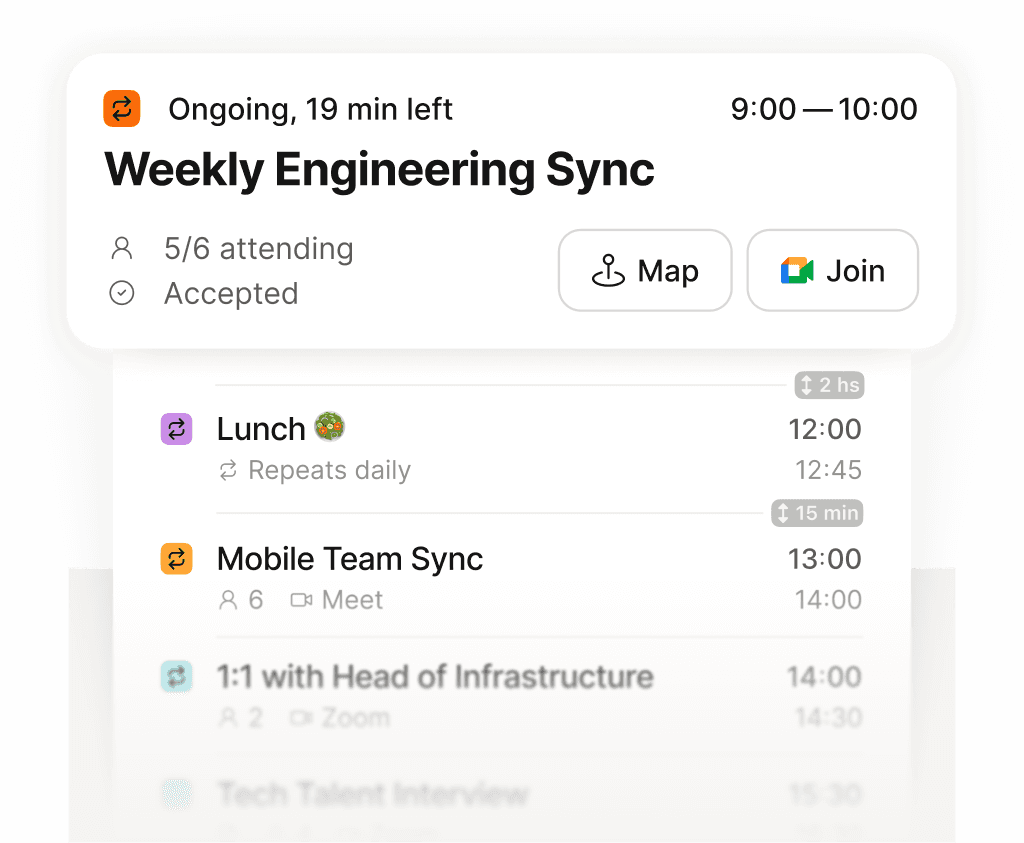
Skip manual event entry

Turn visual details into reviewed calendar fields.

Capture plans before they disappear

Save event details from images before they are lost.

Capture personal and work events

Use one review flow for flyers, invites, and screenshots.

Why Supaplan

Built for the whole calendar workflow.

  • Supaplan treats images as calendar input while keeping the final event under user review.

  • Captured plans flow into the same agenda and assistant context as manually created events.

  • The feature reduces friction between seeing event information and acting on it.

Image review

From screenshot to reviewed event.

Supaplan helps extract useful details while keeping the final calendar action under your control.

  1. 01Upload image

    Share or reference the image that contains event details.

  2. 02Review fields

    Use Supaplan to extract the useful date, time, location, and title context.

  3. 03Create event

    Review the event before it becomes part of your calendar.

Image examples

"Add a conference agenda from a screenshot."

"Turn a dinner flyer into a calendar event."

"Capture travel or event details from an image."

"Avoid manually copying date, time, and location fields."

Decision guide

Use photo import when the details are visual.

Use photo import when the details live in a screenshot or flyer and typing them would slow you down.

Best when
  • Event details arrive as a screenshot, flyer, image, or visual invite.
  • Manual copying of title, date, time, and location would slow you down.
  • You want extracted details reviewed before becoming a calendar event.
Consider another tool
  • The event already exists as a structured calendar invite.
  • You need document OCR for non-calendar paperwork.

Pairs well withAI calendar assistant when image details need follow-up scheduling action.Smart Agenda so captured events appear in the context of the day.

FAQ

Questions before creating events from images

What does photo-to-calendar mean?

It means using event details from an image, screenshot, or flyer as input for creating or preparing a calendar event.

Do I still review the event?

Yes. Calendar actions should stay clear and user-controlled, especially when details come from images.

Why is this useful?

Many plans arrive visually. Supaplan reduces the friction between seeing event details and making them actionable in your calendar.